

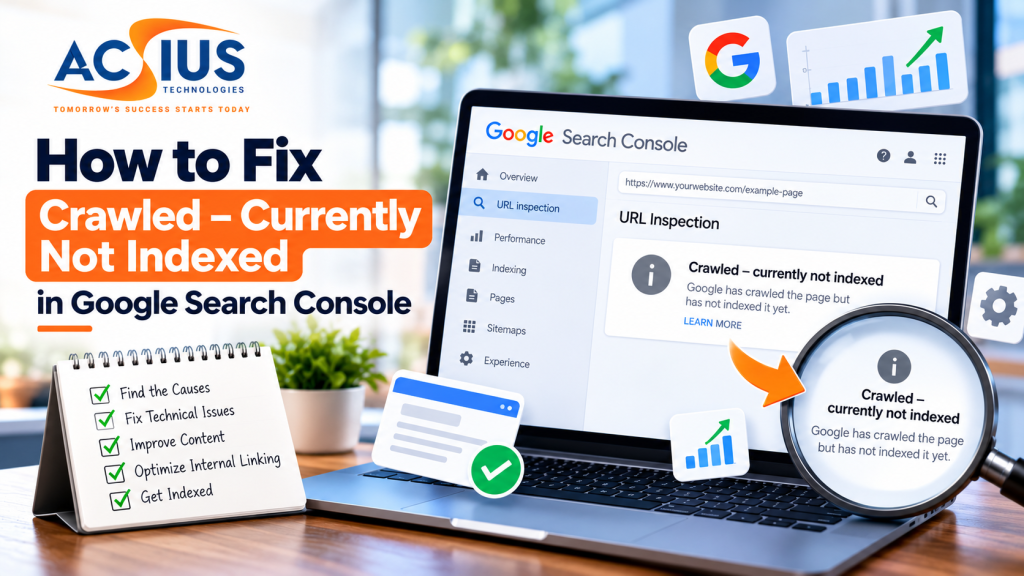
You publish a new blog post, check that everything looks right, and submit the URL to Google Search Console. A few days later, you check its status and find the message “Crawled – Currently Not Indexed.”
Google has visited the page, so why isn’t it appearing in search results?
This is a common concern for website owners and SEO professionals. The status can be confusing because it suggests that Google has discovered and accessed the page but has not included it in its search index.
The important thing to understand is that crawling and indexing are two different processes. Google can successfully crawl a page without deciding to index it. Repeatedly submitting the same URL will not necessarily solve the problem.
In this guide, we’ll explain what the status means, why it happens, and how to troubleshoot it using Google Search Console and practical technical SEO checks.
What Does “Crawled – Currently Not Indexed” Mean?
In Google Search Console, “Crawled – currently not indexed” means Google has crawled the page but has not indexed it at the time of the report.
Google has accessed the URL and processed its content, but the page has not been included in Google’s search index.
This does not automatically mean that the page has a technical error or violates Google’s guidelines. There may be several reasons, including content quality, duplication, site structure, or Google’s assessment of whether the page should be indexed.
For example, imagine you publish a blog post about website maintenance. Googlebot visits the URL and reads the page, but the page remains outside the search index.
The next step is not necessarily to request indexing again. First, you need to determine whether the page has a technical problem or whether its content needs improvement.
For Google’s official explanation of indexing statuses, refer to the Google Search Console Page Indexing report.
Crawling vs. Indexing: What’s the Difference?
Understanding the difference between crawling and indexing makes this issue much easier to diagnose.
Crawling is the process through which Googlebot discovers and accesses a URL to retrieve its content.
Indexing involves analysing the page’s content, metadata, images, and other relevant signals to determine whether and how it should be included in Google’s index.
A page can be crawled successfully without being indexed. Similarly, a page can be technically accessible but still not appear in search results.
This is why simply checking whether a URL opens in a browser is not enough to determine whether it is eligible for indexing.
The goal is to make sure the page is accessible, provides useful and distinct information, and is technically configured correctly.
You can learn more about these processes in Google’s SEO Starter Guide.
7 Common Reasons Your Pages Are Not Indexed
Before making changes to your website, identify the likely cause. The following issues are worth checking.
1. The Content Does Not Offer Enough Unique Value
One possible reason is that the page does not provide enough useful information compared with other pages already available on the web.
For example, a blog post that repeats basic SEO advice without adding explanations, examples, original insights, or practical steps may offer little additional value to readers.
This does not mean every article must be long. A short, well-written page can be useful if it answers a specific question effectively.
Instead of adding words just to increase the article length, focus on answering the reader’s question thoroughly.
Consider adding:
- Practical examples based on real situations.
- Clear explanations of technical concepts.
- Step-by-step instructions.
- Original observations or case studies where available.
- Information that helps readers make a decision or solve a problem.
The objective is to make the page genuinely useful rather than simply different in wording.
2. Your Page Is Too Similar to Existing Content
Duplicate or substantially similar content can complicate Google’s indexing decisions.
For example, a website might publish several articles targeting nearly identical keywords while covering the same points in almost the same way.
Google may select one URL as the canonical version and leave other versions out of the index.
Review your website for pages that target the same search intent. If two articles provide essentially the same information, consider combining them into one stronger resource.
If multiple URLs contain equivalent content, check whether canonical tags are configured correctly.
Do not add canonical tags simply to force indexing. The canonical URL should represent the preferred version of duplicate or substantially similar content.
3. Internal Linking Is Weak
A page that receives few or no internal links may be harder for users and search engines to discover through the website’s structure.
For example, publishing a blog post without linking to it from a relevant category page, related article, or other accessible page can leave it poorly connected to the rest of the website.
Review your internal linking structure and add relevant links from existing pages where they genuinely help readers.
For a technical SEO article, you might link to related guides on website maintenance, indexing issues, or page performance.
Use descriptive anchor text so readers can understand what they will find after clicking.
Internal links help Google discover pages and understand how different topics relate to one another. However, adding internal links alone does not guarantee indexing.
For more information about how website structure and content work together, explore our WordPress website development services.
4. A Noindex Directive Is Present
Sometimes, a page is unintentionally configured not to appear in search results.
A robots meta tag containing noindex, or an equivalent X-Robots-Tag HTTP header, instructs Google not to index the page.
This can happen during website development when staging settings or content management system configurations are carried over to the live website.
To investigate:
- Open the affected URL in Google Search Console.
- Run URL Inspection.
- Review the page’s indexing information.
- Check the rendered HTML and HTTP headers for a
noindexdirective. - If the directive is unintended, remove it and verify the page’s configuration.
Make sure you only remove noindex from pages that you actually want Google to index.
Important: Robots.txt and noindex serve different purposes. Blocking a URL through robots.txt can prevent Googlebot from accessing the page, which means it may not be able to read a noindex directive on that page.
Allow crawling when Google needs to access the page to process its indexing instructions.
5. The Canonical Tag Points to Another URL
Canonical tags help search engines identify the preferred URL when similar or duplicate pages exist.
Suppose your blog post is available at one URL, but its canonical tag points to a different article. Google may interpret the other URL as the preferred version.
Check the canonical information in Google Search Console’s URL Inspection report.
Compare the user-declared canonical with Google’s selected canonical, where that information is available.
If Google has selected a different URL, investigate why. The pages might be duplicates, the internal links might favour another version, or the canonical implementation might be incorrect.
Correct the underlying issue instead of changing canonical tags without understanding the relationship between the pages.
6. Google Has Not Found Enough Reasons to Index the Page Yet
Not every crawled page is automatically included in Google’s index.
Google evaluates content and other signals as part of its indexing process. A page may remain unindexed even when it loads successfully and has no obvious technical issue.
This is particularly relevant for websites that publish large numbers of similar, repetitive, or low-value pages.
Review whether the page deserves to exist as a separate resource. Does it answer a distinct question? Does it offer something useful that readers cannot easily obtain from another page on your website?
If the answer is unclear, improve the content or reconsider whether the page needs to exist independently.
Do not assume that every URL must be indexed. Some pages are intentionally excluded from search results, and that may be appropriate for the website.
7. Technical Problems Make the Page Difficult to Process
Although “Crawled – currently not indexed” indicates that Google has crawled the page, technical problems may still be worth investigating.
Examples include:
- Important content that is missing from the rendered page.
- Incorrect canonical tags.
- Unexpected redirects.
- Server responses that do not reflect the intended page.
- Important resources that cannot be accessed.
- A website structure that makes important pages difficult to discover.
Start with the actual URL Inspection results rather than assuming that a technical problem exists.
Check the HTTP response, rendered content, indexing directives, canonical URL, and any relevant server logs.
If the page relies heavily on JavaScript, verify that its important content is available to Google after rendering.
Resolving an actual technical issue is more useful than making random SEO changes without evidence.
If your website has persistent technical problems, our website development services can help you explore the technical improvements needed for a more reliable website.
How to Fix “Crawled – Currently Not Indexed” Step by Step
Now that you understand the possible causes, follow this process to investigate an affected URL.
Step 1: Inspect the URL in Google Search Console
Open Google Search Console and select the correct website property.
Paste the affected URL into the URL Inspection tool.
Review the available information, including:
- Whether the URL is indexed.
- The last crawl date, where available.
- The page’s indexing eligibility.
- The user-declared canonical.
- Google’s selected canonical, where available.
- Any relevant crawling or indexing details.
This gives you a starting point for identifying the problem.
Do not rely only on the overall Page Indexing report. Inspect the individual URL to understand its current situation.
Step 2: Confirm That the Page Can Be Indexed
Check that the page returns a successful HTTP 200 response when it is intended to be available for indexing.
Next, verify that Googlebot is not accidentally blocked and that no unwanted noindex directive is present.
Also check whether the canonical tag points to the correct URL.
A technically eligible page is not guaranteed to be indexed, but resolving these issues removes common obstacles.
Step 3: Review the Content Against Search Intent
Read the article from the perspective of someone searching for the topic.
Ask yourself:
- Does the introduction address the main question?
- Does the article explain the issue accurately?
- Are the recommendations specific enough to be useful?
- Does it contain unnecessary repetition?
- Is the information current?
- Does it provide a clear solution rather than repeating generic advice?
For example, an article about fixing indexing problems should explain how to use URL Inspection, how to identify common technical issues, and what to do after making changes.
A page that only explains what indexing means may not fully satisfy someone looking for a practical troubleshooting guide.
Step 4: Check for Duplicate or Competing Pages
Search your website for other articles covering the same topic.
If multiple pages answer almost identical questions, consider whether each one serves a distinct purpose.
You might need to improve their differentiation, consolidate overlapping content, or correct canonical signals.
Avoid deleting pages simply because they are not indexed. First, determine whether they have useful content, backlinks, traffic, or another important purpose.
Any consolidation or URL change should include an appropriate redirect where necessary.
Step 5: Improve Internal Links
Add relevant internal links from pages that Google and users can already access.
For example, if you have an established technical SEO guide, link from it to the new article about indexing problems.
Also make sure the article is accessible through the appropriate blog category or other useful navigation.
Prioritise relevant links that help readers move naturally between related topics.
There is no need to add dozens of internal links to every page. A logical and accessible site structure is more important than link quantity.
Step 6: Update Your XML Sitemap
Make sure your XML sitemap includes the preferred, indexable URL.
The sitemap should not contain URLs that redirect, return errors, or have been intentionally excluded from indexing.
If your CMS generates the sitemap automatically, check that it is functioning correctly after publishing or updating the page.
A sitemap helps Google discover URLs, but it does not guarantee that every submitted URL will be indexed.
Step 7: Request Indexing After Fixing the Issue
Once you have made meaningful improvements, return to URL Inspection and use the available request-indexing option if appropriate.
Do this after checking the page rather than repeatedly submitting the same unchanged URL.
Google may take several days or longer to recrawl and process a page. A request does not guarantee immediate indexing or inclusion in search results.
Give Google time to process the changes, then check the URL’s status again.
For Google’s official instructions, read Ask Google to Recrawl Your Website.
Should You Keep Requesting Indexing Every Day?
No. Repeatedly requesting indexing for the same unchanged page is not a reliable solution.
Google provides a limited quota for individual indexing requests, and submitting the same URL multiple times does not make Google crawl it faster.
If the page remains unindexed, review the available evidence and investigate whether anything meaningful needs to change.
Depending on the situation, that might involve improving the content, correcting a canonical tag, fixing an indexing directive, strengthening internal links, or resolving a technical issue.
If the page is already technically sound and provides useful content, there may be no immediate action required. Google ultimately decides whether and when to index a URL.
How Long Does It Take Google to Index a Page After Fixing It?
There is no fixed timeframe.
After a page is updated or submitted for recrawling, Google may take several days to several weeks to revisit and process it. Some pages may be processed sooner, while others may take longer or remain unindexed.
The outcome depends on factors such as crawl availability, Google’s ability to discover the page, the content, and its indexing decisions.
Rather than checking the same URL repeatedly throughout the day, allow time for processing and review the results periodically.
If you manage a large website, prioritise pages that are important to users and business goals instead of treating every unindexed URL as equally urgent.
A Practical Checklist for Pages That Are Not Indexed
Before considering the issue resolved, review the following checklist.
Technical Checks
- The page returns HTTP 200 when it should be available.
- Googlebot can access the page.
- No unintended
noindexdirective is present. - The canonical tag points to the preferred URL.
- Important content is visible in the rendered page.
- The page does not redirect unexpectedly.
Content Checks
- The page answers a clear search query.
- The information is useful, accurate, and sufficiently distinctive.
- The content avoids unnecessary repetition.
- The page is not simply a near-duplicate of another URL.
- The title and main headings accurately describe the content.
Website Structure Checks
- Relevant internal links point to the page.
- The preferred URL appears in the XML sitemap where appropriate.
- The page is accessible through the website’s navigation or relevant category.
- Related pages are linked logically.
After Making Changes
- The URL has been inspected in Google Search Console.
- Indexing has been requested where appropriate.
- Enough time has been allowed for Google to recrawl the page.
- The URL’s status is reviewed again.
This checklist can help website owners and SEO teams diagnose common problems systematically instead of relying on guesswork.
Final Thoughts
Seeing “Crawled – currently not indexed” in Google Search Console can be frustrating, especially when you have invested time and effort into creating a new page.
However, the status is not necessarily a sign that something is broken. It means Google has crawled the page but has not included it in the index at the time of the report.
The right response is to investigate before making changes.
Check the URL’s technical configuration, review the content’s usefulness, look for duplication, examine canonical signals, and make sure the page is connected to the rest of your website through relevant internal links.
Once the underlying issue has been addressed, you can request indexing where appropriate and monitor the results. Keep in mind that indexing is not guaranteed, even when a page meets Google’s technical requirements.
At ACSIUS Technologies, we understand that sustainable SEO depends on more than publishing content and targeting keywords. A website also needs a sound technical foundation, useful information, and a structure that helps search engines discover and understand its pages.
If your website is experiencing indexing problems or persistent technical SEO issues, a structured review can help identify potential obstacles and establish a clear plan for improvement.
Need help improving your website’s search visibility? Explore ACSIUS SEO services to learn how technical improvements and a well-planned SEO strategy can support your online growth.
Frequently Asked Questions (FAQs)
How do I fix “Crawled – currently not indexed” in Google Search Console?
Start by inspecting the URL in Google Search Console. Check its HTTP response, indexing directives, canonical tag, content quality, and internal links. Address any identified problems before requesting indexing again.
Does “Crawled – currently not indexed” mean my website has a penalty?
No. This status alone does not mean your website has received a Google penalty. It indicates that the URL has been crawled but is not currently indexed. Investigate the page and its technical and content signals before drawing conclusions.
Can thin content prevent Google from indexing a page?
Content that offers limited value may be one reason Google chooses not to index a page. However, the status can have several causes. Review whether the page answers a specific question clearly and provides useful information beyond what is already available.
Does submitting an XML sitemap guarantee indexing?
No. An XML sitemap helps Google discover URLs, but it does not guarantee that those URLs will be crawled, indexed, or ranked. The pages must also meet Google's technical requirements and be considered suitable for indexing.
Should I request indexing again after updating a page?
You can request indexing after making meaningful improvements or correcting a technical issue. However, repeated requests for an unchanged URL will not make Google index it faster. Allow time for Google to recrawl and process the page.
Can internal linking help Google index my pages?
Relevant internal links help Google discover pages and understand their relationship to other content on your website. They are an important part of site structure, but they do not guarantee that a page will be indexed.
How long does it take to resolve indexing issues?
There is no guaranteed timeframe. Google may take several days or weeks to recrawl and process a page after changes are made. Some pages may remain unindexed even after technical issues have been resolved.
What is the difference between “Crawled – currently not indexed” and “Discovered – currently not indexed”?
“Crawled – currently not indexed” means Google has visited the page but has not indexed it. “Discovered – currently not indexed” means Google knows about the URL but has not yet crawled it. The investigation process differs because the first status concerns a page that has been crawled, while the second concerns a page that has not yet been crawled.
Should I delete pages that are not indexed?
Not automatically. First, determine whether the page provides value, serves a distinct purpose, attracts useful links, or supports visitors in another way. Improve, consolidate, redirect, or remove content based on its purpose and quality rather than its indexing status.
